If the document structure we saw in the previous article is the skeleton of the document manager, metadata is the nervous system. Without well-designed metadata, documents are mute files: they can be stored and retrieved, but they can’t be filtered, classified or governed efficiently. And in the Copilot era, this matters twice over: the quality of the AI answers we’ll get over our repositories depends directly on how well tagged the documents that AI is going to find are.
In this article I’ll tell you how I design the metadata model for the ECM manager in this series. I start with the Term Store —the centralized taxonomy— and from there I work down to site columns, content types and, finally, individual documents. The thread is still the financial scenario from Article 0, but I’ll point out where each concept applies the same way in any sector.
What are managed metadata and why do they matter?
In SharePoint Online there are two broad categories of columns we can use to describe a document: simple columns (free text, date, number, choice) and managed metadata columns. The difference isn’t cosmetic; it’s fundamental.
A free-text column lets each operator write whatever they want: “Credit card”, “credit card”, “CC”, “CrC”. Four operators, four different values for the same reality. When someone filters by “Credit card” the other three don’t show up. When Copilot searches for card documents, it misses all the ones that don’t have the exact value it expects. Managed metadata columns solve this problem by connecting the column to a set of predefined terms in the Term Store: the operator doesn’t type, they pick from a controlled list. A single value, consistent across the whole platform.
The Term Store: the tenant’s centralized taxonomy
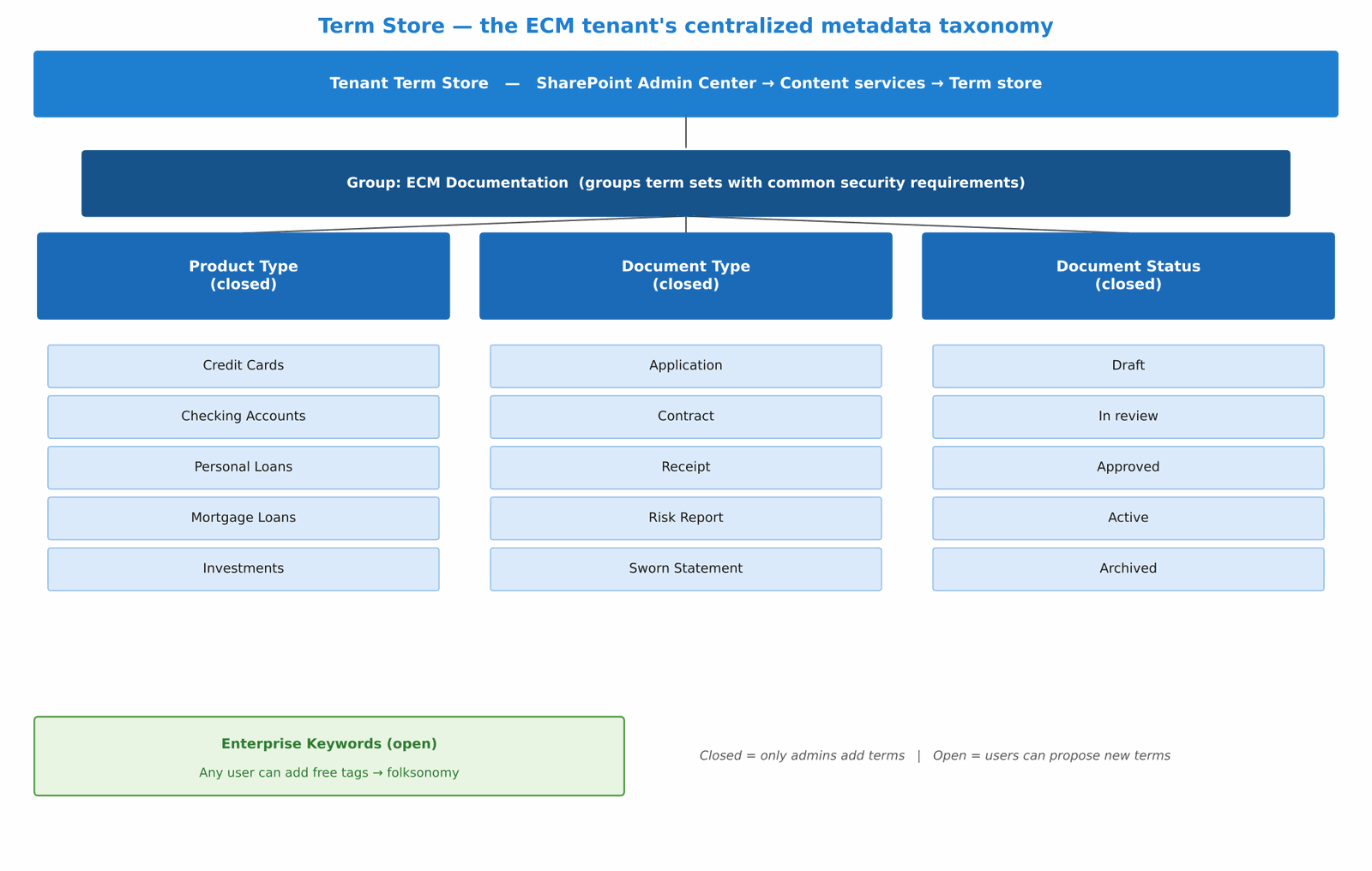
The Term Store is SharePoint Online’s centralized repository of controlled vocabularies. It lives at the tenant level —in the SharePoint Admin Center, under Content services → Term store— and all the sites in the tenant share it. The structure has four levels:
| Level | Description | ECM example |
|---|---|---|
| Tenant Term Store | Single root per tenant; administered by the SharePoint Admin or the Term Store Admin | (tenant root) |
| Group | Groups term sets with common security requirements; defines who can administer them | ECM Documentation |
| Term Set | List of allowed values for a column; can be open or closed | Product Type |
| Term | Individual value; can have synonyms, translations and custom properties | “Mortgage Loans” |
A closed term set only allows the values the administrators define; operators pick from the list but can’t add new terms. An open term set lets users propose new terms, which the administrator can later approve or reorganize. For a production ECM manager, the document-classification term sets almost always go closed: we need full control over the values so retention policies and searches work correctly.
The exception is enterprise keywords: free tags any user can add to any document. They’re useful for informal search and for capturing emerging vocabulary that hasn’t entered the formal taxonomy yet. In the ECM manager I use them as a complement, not as the main classification system.
Image 1 shows the Term Store I design for this series’ financial scenario, with three closed term sets and the enterprise keywords area.
Site columns: the reusable unit of metadata
A site column is a column definition that lives at the site collection or Content Type Hub level and that can be reused across multiple libraries and content types. It’s different from a list or library column, which exists only where it’s created and can’t be shared.
The rule I follow in any ECM project is this: if a column is going to appear in more than one library or in more than one content type, it has to be a site column. Never a local library column. Local columns look easier at first, but a week later they’re out of sync between libraries and there’s no way to update them all together.
For the financial ECM manager, I define these site columns in the Content Type Hub, from where they propagate to all the tenant’s sites:
| Site column | Type | Value source | Description |
|---|---|---|---|
| Client_ID | Text (single line) | External CRM system | Unique client identifier; key for search and grouping |
| Product_Type | Managed metadata | Term Set: Product Type | Financial product the document belongs to |
| Document_Type | Managed metadata | Term Set: Document Type | Document class within the product |
| Status | Managed metadata | Term Set: Document Status | Document status in its lifecycle |
| Valid_Date | Date and time | Manual entry / flow | Date until which the document is valid |
| Expiry_Date | Date and time | Manual entry / flow | Expiry date of the product or contract |
| Retention_Label | Managed metadata | Term Set: Retention Policy | Purview label that controls the lifecycle |
| Confidentiality | Choice | Fixed list: Public / Internal / Confidential / Restricted | Document confidentiality level |
Content types: the inheritance that connects everything
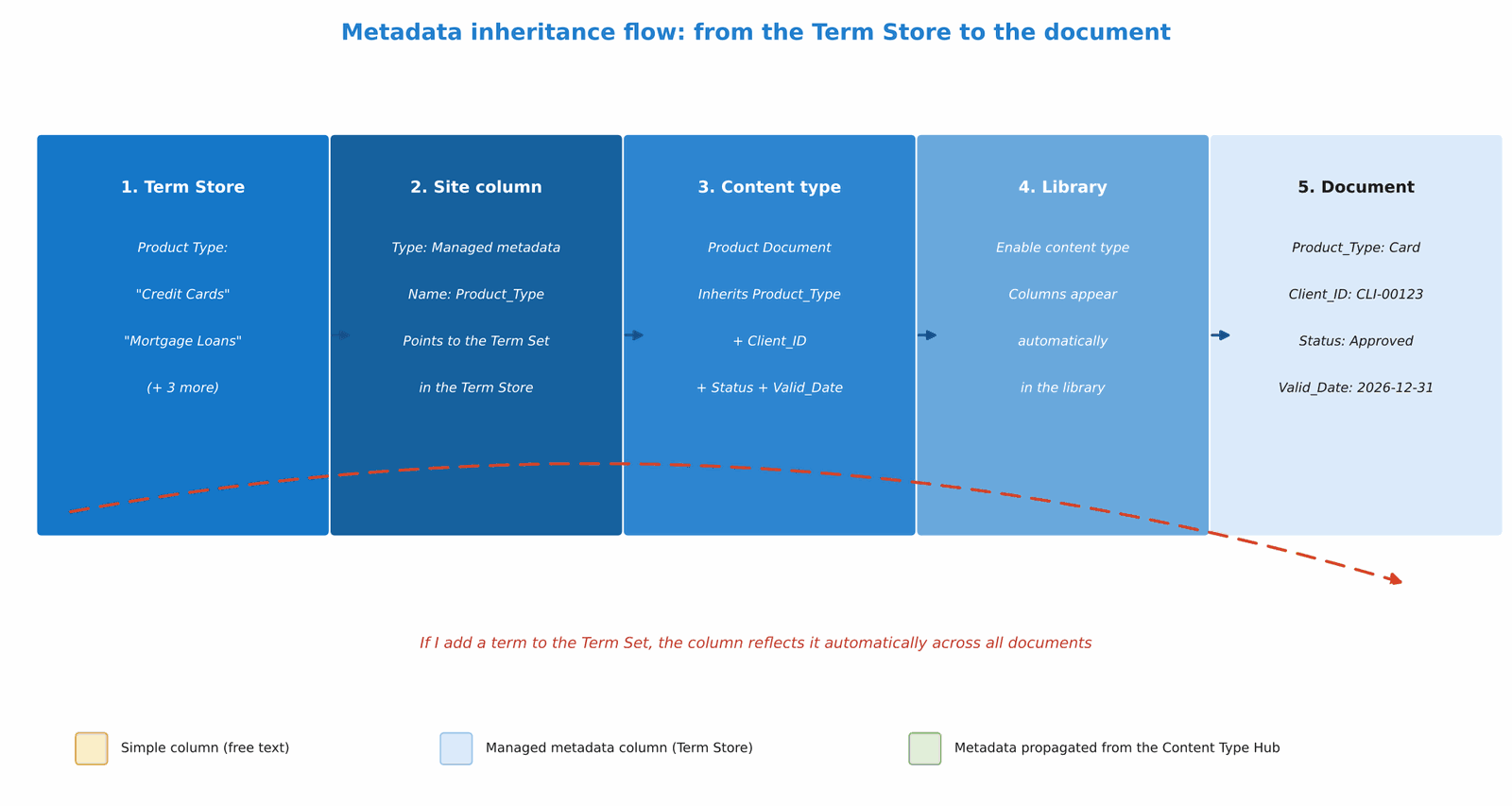
The content type is where metadata reaches its maximum value. A content type is a reusable template that groups site columns, a document template, associated workflows and retention policies. When I associate a content type with a library, all its columns appear automatically in that library, ready to use.
The hierarchy I build starts from a base type published from the Content Type Hub, from which all the others inherit:
ECM Document (base type)
From the base type the columns common to the whole platform are inherited: Client_ID, Status, Valid_Date, Retention_Label, Confidentiality. Every content type in the ECM manager inherits from this type and therefore all of them have these columns without needing to define them in each one.
Second-level types (by product category)
From the base type the category types inherit: Card Document, Account Document, Loan Document, Mortgage Document. Each one adds the columns specific to its product. For example, Mortgage Document adds Deed_Number and Registry_Recording_Date; Card Document adds Masked_Card_Number.
Specific types (by document class)
From the second-level types the specific types inherit: Card Application, Card Contract, Statement; Account Opening Contract, Monthly Statement; Loan Application, Amortization Table, Loan Settlement. These are the types used directly in the libraries.
Image 2 shows how inheritance flows from the Term Store to the final document.
Metadata in the Copilot era: why design matters twice as much
Microsoft Copilot accesses the tenant’s content through Microsoft Graph and SharePoint’s Semantic Index. When a user asks Copilot “show me all the mortgage contracts for client CLI-00123 that expire this quarter”, Copilot doesn’t open folder by folder: it queries the semantic index, filters by the available metadata and returns the documents that match.
If those documents have the columns Client_ID = CLI-00123, Document_Type = Contract, Product_Type = Mortgage Loan and Expiry_Date within the current quarter, Copilot answers in seconds with surgical precision. If they don’t have that metadata, Copilot has to try to infer it from each document’s text content —which is slower, less accurate and consumes more inference tokens—, or it simply doesn’t find them.
The impact is concrete: managed metadata is the language Copilot uses to reason over the document repository. The more consistent and structured that language is, the more precise the answers will be. These are the patterns that have the most impact:
| Metadata pattern | Impact on Copilot | Example query enabled |
|---|---|---|
| Managed metadata columns with controlled values from the Term Store | Copilot can filter and group with high precision | How many personal loans does client CLI-00456 have? |
| Valid_Date and Expiry_Date in date-type columns | Enables precise time-based queries | Show the contracts that expire in the next 30 days |
| Document status with a controlled value | Copilot can ignore drafts and focus on approved ones | Which documents are current for file X? |
| Retention_Label assigned to the content type | Purview manages the lifecycle automatically; Copilot doesn’t access deleted documents | (applies to repository governance) |
| Confidentiality with a Purview sensitivity label | Copilot respects permissions: it only shows what the user can see | Security in repository-based answers |
One detail worth clarifying: Copilot respects SharePoint permissions. If a user doesn’t have access to a site or a library, Copilot won’t show them documents from there, even if it has them in the index. The Semantic Index operates within the user’s identity perimeter. This is good news for security, but it also means that the permissions structure we designed in Article 2 works together with metadata to make sure Copilot is useful and secure at the same time.
Metadata and the SharePoint Knowledge Agent
The SharePoint Knowledge Agent —available with a Microsoft 365 Copilot license— is the natural-language search layer specific to SharePoint’s Knowledge Base. Unlike classic KQL search, the Knowledge Agent interprets natural-language questions, translates them into queries over the index and returns answers with references to the source documents.
To get the most out of the Knowledge Agent in an ECM manager, there are two things we need to have in order. First, the classification metadata (Product_Type, Document_Type, Status) must be complete and consistent, because the Knowledge Agent uses them as implicit filters. Second, documents must have indexable text content —not just images or scanned PDFs without OCR— so the Knowledge Agent can combine semantic search with metadata filtering.
The combination is powerful: the Knowledge Agent can tell me “the three most recent mortgage contracts for client CLI-00123 that are in Approved status” and instantly returns the right documents with the justifying text. Without metadata, that query isn’t possible. With well-designed metadata, it’s trivial.
Practical design: the steps to implement the metadata model
To close the article, here’s the implementation sequence I follow in real projects:
| Step | What to do | Tool |
|---|---|---|
| 1. Design the taxonomy | Define the term sets and their terms before touching SharePoint. Work with business owners to validate the vocabulary. | Excel or Miro for the initial design |
| 2. Create the Term Store | Create the ECM group and the term sets in the SharePoint Admin Center. Import terms in bulk if there are many. | SharePoint Admin Center → Term store |
| 3. Create site columns in the Content Type Hub | Define the site columns connected to the term sets. Name them with underscores (no spaces) to make KQL and Graph easier. | Content Type Hub → Site settings → Columns |
| 4. Create content types with inheritance | Build the content type hierarchy in the Content Type Hub. Publish them to the tenant. | Content Type Hub → Content Types |
| 5. Enable in the libraries | Associate the content types with the libraries of each site collection. New sites inherit the configuration automatically. | Library settings → Content Types |
| 6. Validate with a KQL query | Check that the metadata is indexed correctly by searching with KQL in Microsoft Search. | Microsoft Search → advanced search |
Conclusion
In this article I presented the metadata model that gives the document manager its intelligence: the Term Store as a controlled vocabulary, site columns as the reusable unit, inheritance from content types so everything propagates on its own, and the direct impact this design has on the quality of Copilot’s and the Knowledge Agent’s answers. Metadata isn’t a late configuration detail; it’s an architecture decision that has to be made from day one, before operators start loading documents. A poorly designed taxonomy that you then try to fix across thousands of existing documents is one of the most expensive and frustrating jobs in the ECM world. In the next article we move to the governance and security layer: how to manage permissions at scale, Microsoft 365 groups, SharePoint Advanced Management and Data Access Governance.
Fabián Imaz
Office Apps and Services MVP
CEO Siderys | CTO qualitaslearning.com
fabiani@siderys.com.uy | @fabianimaz
Appendix — Full series: ECM with Microsoft 365
A 17-article series. The links are updated as the articles are published.
- Enterprise Document Management with Microsoft 365: a use case that applies to any sector, with a focus on finance — Reference architecture: files per client, content types, document lifecycle and two-tier archiving with SharePoint Embedded and M365 Archive.
- ECM Licensing in Microsoft 365: how to choose without overspending — Enterprise, Business and Frontline plans; SharePoint Embedded, M365 Archive, Purview and Copilot. Mixed licensing by user profile.
- Document Structure — Communication Sites vs. Team Sites, hub sites as concentrators, site collections per entity, libraries per process, Document Sets, document links and metadata instead of folders.
- Metadata (this article) — Term Store, site columns, term sets, inheritance from the content type and its impact on Copilot’s answers.
- Governance and Security — Permission models, Microsoft 365 groups, SharePoint Advanced Management, Data Access Governance and conditional access.
- Processes and workflows — Power Automate, approvals, document lifecycle and Copilot Actions for automation.
- Compliance and retention with Microsoft Purview — Retention labels, Records Management and DLP. Replacing the information management policies deprecated in April 2026.
- Cataloging and classification — SharePoint Premium / Syntex: automatic classification, entity extraction and sensitivity labels.
- Migration to modern ECM — Content audit, migration strategy, tools (SPMT, Sharegate) and change management.
- Storage — SharePoint Online Sites — Site collections, quotas, lifecycle policies and site archiving.
- Storage — SharePoint Embedded — Containers, API via Microsoft Graph, PAYG cost model and archiving use cases.
- Search — Microsoft Search, KQL, Graph connectors and the SharePoint Knowledge Agent.
- Integration with APIs and Graph — Microsoft Graph API, SPFx, REST API and webhooks for integration with external systems.
- Azure AI and document intelligence — Azure Document Intelligence, OCR, field extraction and multimodal processing integrated with ECM.
- Copilot and ECM — How the metadata and structure architecture impacts the quality of Copilot’s answers.
- Copilot Studio Agents over document content — Autonomous agents over SharePoint repositories and their integration with the Power Platform.
- Forms and intelligent document capture — Custom upload forms, structured capture at ingestion and metadata validation at the source.
Frequently asked questions
What is the Term Store in SharePoint Online?
The Term Store is the tenant’s centralized repository of controlled vocabularies, in the SharePoint Admin Center under Content services. It has four levels—Term Store, Group, Term Set and Term—and every site in the tenant shares it, which keeps the taxonomy consistent across the whole platform.
What’s the difference between a simple column and a managed metadata column?
A free-text column lets each operator type whatever they want, producing inconsistent values (“Credit card”, “CC”, “CrC”). A managed metadata column connects to a term set in the Term Store, so the operator picks from a controlled list and the value stays unique and consistent across the platform.
Why does metadata matter for Microsoft Copilot?
Copilot uses the metadata in SharePoint’s Semantic Index to filter and reason over the repository. With consistent managed metadata it answers in seconds and with precision; without it, it has to infer from each document’s text—slower, less accurate and more token-intensive—or it simply doesn’t find the documents.
What does the SharePoint Knowledge Agent need to work well?
Two things: complete, consistent classification metadata (Product_Type, Document_Type, Status), which the Knowledge Agent uses as implicit filters, and documents with indexable text content—not just images or scanned PDFs without OCR—so it can combine semantic search with metadata filtering.