Over the past few years I’ve been watching how Microsoft 365 has made its way into practically every organization we work with, and the financial sector is no exception. Banks, insurers, credit institutions… they all have a concrete opportunity in front of them today: to leave behind scattered repositories, network folders and isolated scanning systems, and move to a unified cloud document management platform. The question that comes up right away is: how do you design that platform so it is robust, auditable and genuinely scalable, in a scenario where a single client can have a checking account, a credit card, a savings account and a mortgage loan all at the same time?
After so many years working on SharePoint and ECM projects, I’ve come across more than one financial institution whose documentation was spread across network folders, isolated scanners and who knows how many other systems. And it always ends the same way: nobody can find anything when they need it, and when a regulatory audit shows up, it’s a headache. It’s out of those real-world problems that the case we’ll use as the thread for this whole series was born.
Throughout this series I’ll be showing you, layer by layer, how we build an enterprise document management system on Microsoft 365, SharePoint Online, SharePoint Embedded and Azure. In this first article I’ll start with the use case that will frame everything else: a financial institution that needs to manage digital files per client and per product, with a controlled document lifecycle, role-based security and metadata-driven search. That scenario will serve as a concrete reference for all the technical concepts we go through in the articles that follow.
It’s worth clarifying something before we go on: while we’ll develop the entire case around a financial institution—because it’s one of the most demanding scenarios I know in terms of volume, regulation and variety of processes—the architecture we’re going to build is perfectly transferable to any organization that needs to organize its documentation. An insurer, a healthcare company, a public agency or a services firm will find in this same model a solid foundation for solving their own case, simply by swapping “client” and “product” for the entities that fit their business.
What’s the scenario?
Let’s imagine a financial institution with a large client base, both individuals and legal entities, where each client can access a varied catalog of products: credit and debit cards, checking accounts, savings accounts, auto loans, mortgages and personal loans. The documentation for each of those products has its own characteristics: different regulatory retention periods, different required document types and specific approval processes. A mortgage loan calls for appraisals, deeds and risk reports; a credit card, application forms, income statements and adhesion contracts. Treating all that documentation the same way would be a design mistake, and believe me, I’ve seen it happen more than once.
The document management system we’re going to design on Microsoft 365 has to solve three things: organize the information so every document is properly classified and easy to find; protect access with a granular, auditable permissions model; and govern the lifecycle of each document, making sure it’s retained for as long as necessary and archived when appropriate. The good news is that the platform gives us all the tools today to achieve this without having to set up our own infrastructure.
The solution architecture in Microsoft 365
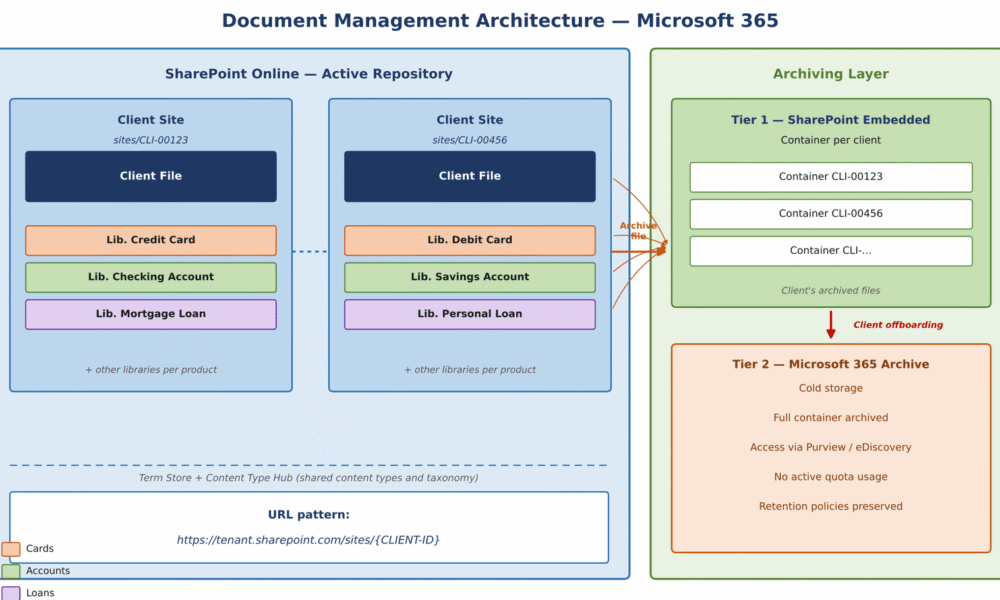
The architecture rests on three layers: SharePoint Online as the platform for storage and active collaboration; SharePoint Embedded as the first archiving tier, per client; and Microsoft 365 Archive as long-term cold storage. Splitting it into layers lets us scale each part independently and control storage costs according to the lifecycle of each file. In Image 1 I’ve laid out the full architecture.
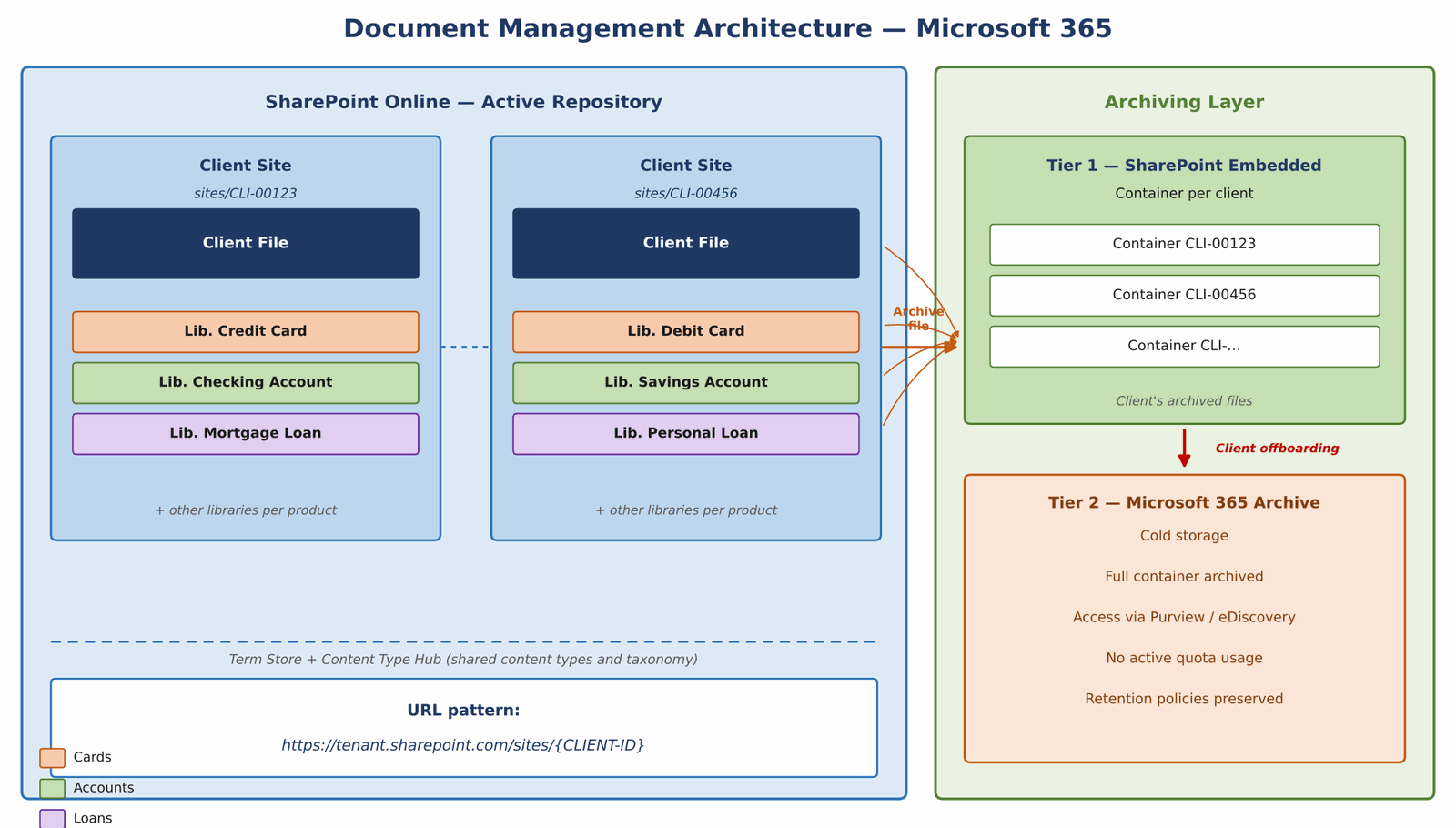
In the active layer, each client of the institution will have its own site collection in SharePoint Online, uniquely identified with a URL pattern that incorporates the client identifier:
https://tenant.sharepoint.com/sites/{CLIENT-ID}This gives us complete isolation between the document spaces of different clients, lets us apply specific permissions at the site collection level, and lets us scale horizontally as the client base grows, without one client’s growth affecting the performance of the others.
Within each site collection, things are organized into two pieces: the Client File, which concentrates the client’s identity documentation and general information, and one document library for each type of product the client has contracted. Each library has its own content types, metadata columns and retention policies, so the compliance rules stay exactly as they need to be for each product, without stepping on one another.
The core of the model: client and product Files
The concept of the File is the axis that organizes all the information in the system. Here I distinguish two very different levels, as you’ll see in Image 2.
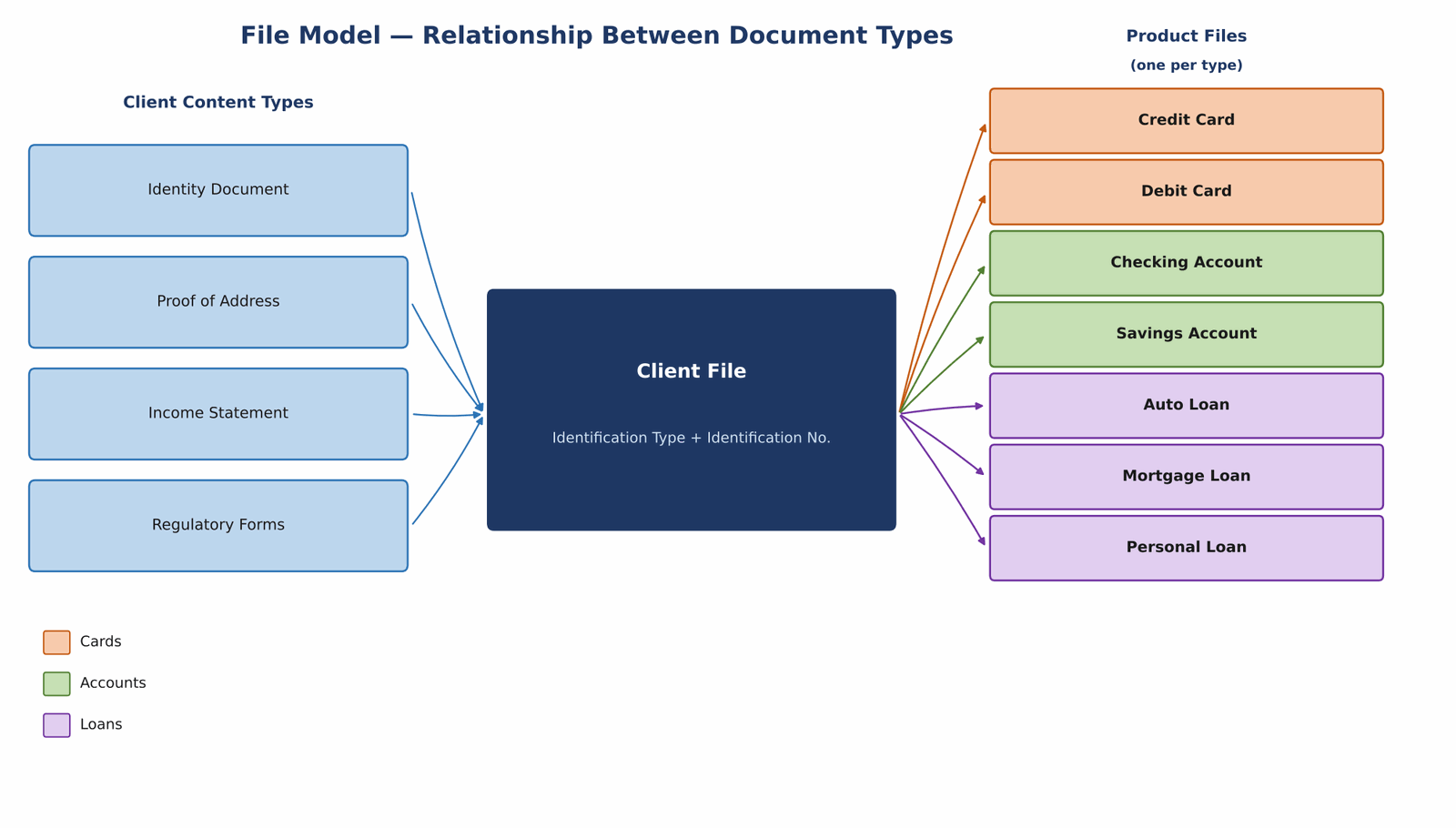
The Client File concentrates all the documentation that identifies the person, regardless of which products they have contracted: identity documents, proof of address, income statements and Know Your Customer (KYC) forms. In SharePoint Online I implement it as a Document Set in the main library of the client’s site. This file doesn’t expire: it stays active for as long as the client has any relationship with the institution.
The Product File, on the other hand, exists as a separate instance for each type of contracted product, hosted in the corresponding library within the same client site. A single client can have a credit card file, a checking account file and a mortgage file all at the same time, each in its own library, with its own documentation, metadata and retention policies.
I also build the product files with SharePoint Online Document Sets, which let you group several documents under an entity with its own properties, a custom welcome page and metadata that propagates automatically to all the documents that make it up.
Taxonomy and content types
I centralize the taxonomy in the SharePoint Online Term Store, and I publish the Content Types from a Content Type Hub out to all the client sites. This ensures consistency across the whole platform: if I add a new document type to a product, the change propagates on its own to every site. I organize the content types with inheritance: base types for the Client File and for each product category (cards, accounts, loans), from which the specific types for each document then inherit.
In Microsoft 365 this is complemented by SharePoint Premium (formerly Syntex), which adds the ability to classify documents and extract metadata automatically, with AI models trained on the organization’s own content.
Document lifecycle and retention with Microsoft Purview
Each content type has an associated Microsoft Purview retention label that defines how long the document has to stay in the active repository. That configuration applies on its own when the document is classified with its content type. When the period expires, Purview can delete it, retain it for review or trigger a Power Automate flow that notifies the person responsible so they can decide what to do.
Today Microsoft recommends using Microsoft Purview Data Lifecycle Management and Records Management as the standard retention mechanism in SharePoint Online, replacing the old SharePoint information management policies, whose support ended in April 2026.
Two-tier archiving: SharePoint Embedded and Microsoft 365 Archive
I set up archiving in two instances. The first, on SharePoint Embedded, acts as an active archiving repository per client: when a file or document has to leave the operational repository, I create a container in SharePoint Embedded associated with the client identifier, and there I consolidate all of that client’s archived files in a space logically separated from the active site.
The second instance comes into play when the client stops having a relationship with the institution: the entire SharePoint Embedded container is archived with Microsoft 365 Archive and moves to cold storage, without consuming the tenant’s active quota. I’ll leave the fine detail of the archiving process and container configuration for the article dedicated to the topic, which will have plenty to cover.
Security, permissions and auditing
I build the security model on Microsoft 365 groups and Microsoft Entra ID conditional access policies. I define functional roles—Administrator, Supervisor, Document Operator, Consultant and Read Only—that are assigned at the client site collection level, so each operator can only access the files of the clients assigned to them.
Auditing records everything that happens with each file: creation, modification, deletion and archiving. Purview centralizes those records in the Unified Audit Log, with the ability to alert on unusual behavior and export to corporate SIEM systems.
Search and access to information
I solve access to the documentation with Microsoft Search, which continuously indexes the content of all the SharePoint Online sites. Users can run advanced searches with the KQL language, filtering by client number, product type, effective date and document status. And here’s something that excites me: the SharePoint Knowledge Agent—available with a Microsoft 365 Copilot license since 2026—already lets you make natural-language queries directly against the content of the document management system.
Conclusion
In this first article I wanted to show you how a financial institution can build a robust, scalable document management system on Microsoft 365, organized around the idea of one site collection per client, with one document library per product type and a two-tier archive combining SharePoint Embedded and Microsoft 365 Archive. In the coming articles we’ll bring each pillar of this architecture down to earth, one by one—as we always do in CompartiMOSS. Here’s the full lineup of the series:
- Article 1: ECM Licensing in Microsoft 365 — M365 plans, SharePoint Premium, SharePoint Embedded and Microsoft Purview Add-on
- Article 2: Document Structure — site hierarchy, hub sites, libraries and content types
- Article 3: Metadata — Term Store, site columns, inheritance and metadata in the Copilot era
- Article 4: Governance and Security — permissions, Microsoft 365 groups, SharePoint Advanced Management and Data Access Governance
- Article 5: Processes and workflows — Power Automate, approvals and document lifecycle
- Article 6: Compliance and retention with Microsoft Purview — retention labels, Records Management and DLP
- Article 7: Cataloging and classification — SharePoint Premium / Syntex, automatic classification and sensitivity labels
- Article 8: Migration to modern ECM — content auditing, migration strategy and change management
- Article 9: Storage — SharePoint Online Sites — site collections, quotas and lifecycle policies
- Article 10: Storage — SharePoint Embedded — containers, API, cost model and archiving
- Article 11: Search — Microsoft Search, KQL, Graph connectors and SharePoint Knowledge Agent
- Article 12: Integration with APIs and Graph — Microsoft Graph API, SPFx, REST API and webhooks
- Article 13: Azure AI and document intelligence — Azure Document Intelligence, OCR and multimodal processing
- Article 14: Copilot and ECM — how information architecture impacts Copilot’s answers
- Article 15: Copilot Studio Agents over document content — autonomous agents over SharePoint repositories
- Article 16: Forms and intelligent document capture — custom upload forms and structured capture at ingestion
Fabián Imaz
Office Apps and Services MVP
CEO Siderys | CTO qualitaslearning.com
fabiani@siderys.com.uy | @fabianimaz