Before configuring a single retention policy, before turning on Purview or thinking about which licenses we need, there’s one decision that impacts everything else: how we organize the content inside SharePoint Online. The document structure isn’t a technical detail that resolves itself; it’s an architectural decision that, if you get it wrong at the start, costs a fortune to fix later. I’ve seen it on more than one project: the pressure to get going leads people to create folders in any library, to put everything in a Teams site that had a different purpose, and three months later nobody can find anything and the permissions are a mess.
In this article I’ll tell you how I think about document structure for an ECM manager on SharePoint Online: from the choice of site type to the metadata model that replaces folders, by way of hub sites, site collections and content types. The case I use as a reference is the financial sector one, which appears in Article 0 of this series, but the design decisions apply just as well in a clinic, an insurer or a public agency.
Communication Site or Team Site? The first architectural decision
SharePoint Online has two types of root site: Communication Sites and Team Sites. They’re not interchangeable, and choosing the wrong one for each purpose creates governance problems from day one.
Communication Sites are designed to publish content to a broad audience. They don’t have a Microsoft 365 group associated by default, they don’t automatically create a Teams team, and the permissions model is simple: there are site owners and there are readers. They’re the right site for internal portals, corporate documentation hubs and reference pages that many people visit but few edit.
Team Sites are meant for collaboration within a working team. They automatically create a Microsoft 365 group (with a mailbox, calendar and Teams team included), which makes them the natural candidate for day-to-day work on projects or functional areas. In an ECM document manager, Team Sites are the place where document operators are going to load, classify and work with the files.
| Characteristic | Communication Site | Team Site |
|---|---|---|
| Audience | Many readers, few editors | Collaborative working team |
| M365 group | No (by default) | Yes (mailbox, calendar, Teams) |
| Typical ECM use | Root hub, document portal, reference center | Site per client / active file |
| Permissions | Simple: owners and visitors | Granular: members, owners, guests |
| Hub association | Can be a root hub or associated | Can be associated with a hub |
Hub Sites: concentrators that connect without merging
Hub sites are one of the concepts that cause the most confusion, especially for those coming from SharePoint Server on-premises, where everything was a matter of site collections and sub-collections. In SharePoint Online a hub site isn’t a container that houses the others; it’s a node for navigation, search and visual theme that associates sites with one another without touching their permissions structure.
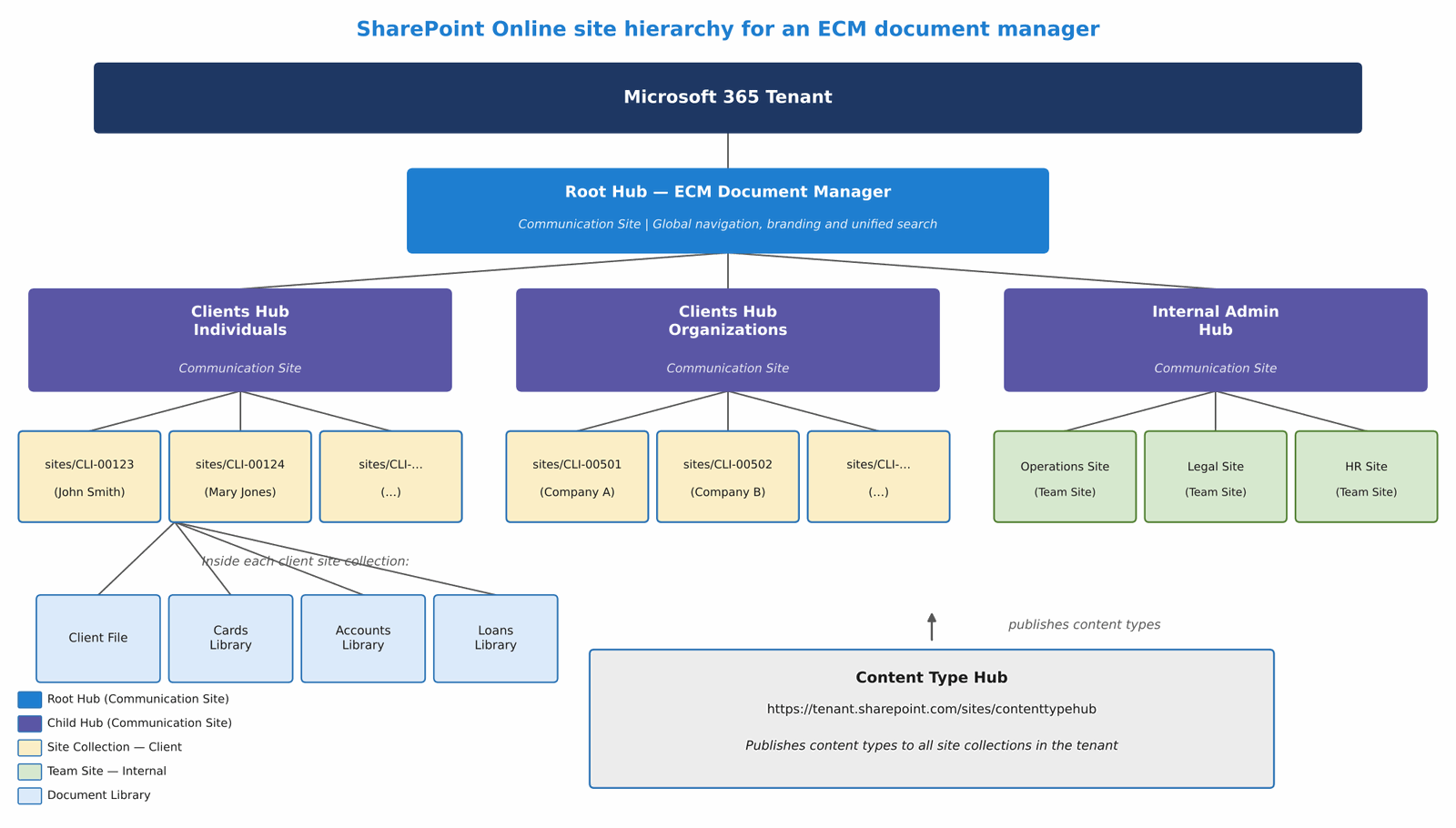
The hub site architecture in Microsoft 365 supports up to three levels: a root hub that can have child hubs, and each child hub can have associated sites. The association doesn’t create a content hierarchy—it creates a common surface for navigation and search. When a user searches from the root hub, the search sweeps across all the sites associated with the tree, which is exactly what we need in a document manager where the operator has to be able to find a file without knowing which of the hundreds of site collections it’s in.
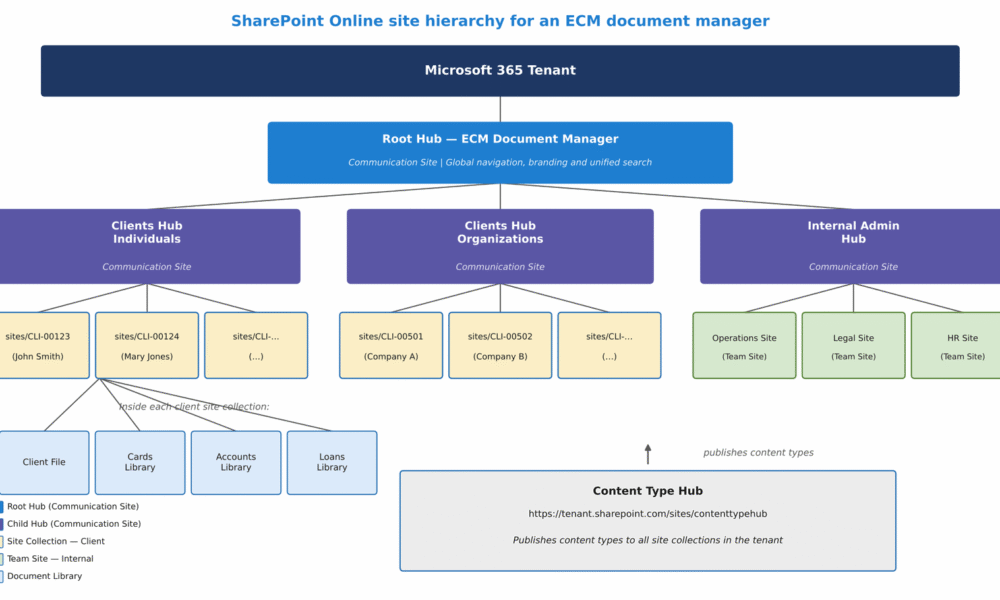
For the financial scenario in Article 0, I set it up like this: a Communication Site as the root hub of the document manager, two child hubs (one for Individuals and one for Companies), and under each child hub the Team Sites for each client. Image 1 shows this complete hierarchy.
One site collection per client: the unit of isolation
Picking up the pattern I presented in Article 0 of this series: in a document manager at scale, each principal entity—client, supplier, case, file—should have its own site collection. This decision isn’t arbitrary; it responds to three concrete technical reasons.
First, permission isolation. In SharePoint Online, permissions are administered within a site collection, and the security model guarantees that the permissions of one collection don’t affect another. If operator A handles the clients in the northern area and operator B those in the south, I can assign permissions at the site collection level with no risk of one seeing the other’s work.
Second, the independent lifecycle. When a client ends their relationship with the institution, the site can be archived or deleted without touching any other client’s data. Working everything in a shared site makes any lifecycle operation surgical and risky.
Third, the storage quota. SharePoint Online lets you assign storage quotas per site collection, which gives visibility into which clients or entities consume the most space and helps inform archiving decisions.
The URL pattern I use is https://tenant.sharepoint.com/sites/{CLIENT-ID}, where {CLIENT-ID} is the unique identifier of the client or file. This makes the URL predictable, which simplifies automation with Power Automate and integrations via Microsoft Graph.
Document libraries: one per process type
Within each site collection, the organization of the document libraries is the second level of the architecture. The natural temptation is to create one big library and use folders to separate the document types. It’s the most common mistake I see in SharePoint implementations, and it carries a cost that shows up once it’s already too late.
The right approach is to create one document library per process or product type. Each library has its own content types, its own metadata columns and its own retention policies. With this design, when Purview applies a retention policy over «mortgage loan contracts,» it works only on that library, with the exact rules that correspond to that document type.
For the financial scenario, the library structure inside each client’s site looks like this:
| Library | Main content type | Concrete responsibility |
|---|---|---|
| Client File | Document Set (by year) | Identity, KYC and general client correspondence documentation, organized by annual period |
| Cards | Card Document | Applications, contracts and statements for credit and debit cards |
| Checking Accounts | Account Document | Opening contracts, statements and operational account documentation |
| Personal Loans | Loan Document | Applications, settlements, amortization tables and guarantees |
| Mortgage Loans | Mortgage Document | Deeds, appraisals, insurance policies and mortgage contracts |
The Client File and Document Sets
The «Client File» library plays a different role from the rest: it doesn’t organize documents by product type but rather the client’s general documentation, and its lifecycle is tied to the client, not to a specific product. To organize that documentation over time I use SharePoint Document Sets—one per year. A Document Set is a special content type that groups several files under a common entity with its own properties, a configurable welcome page and metadata that propagates to all the documents that make it up.
So, within the «Client File» library of a site I have the sets «2023,» «2024,» «2025,» each with its own metadata for period, status and owner, and inside them the individual files for that year: identity renewals, address updates, annual KYC forms. This lets me apply retention at the level of the entire set and have a clean view by period without resorting to folders.
Cross-references with document links
From the product libraries (Cards, Loans, etc.) it’s common to need to reference a document from the Client File—for example, the identity document that’s already loaded in the client’s library. Creating a copy in each library is a mistake: it would generate out-of-date duplicates and make it impossible to govern which is the current version.
SharePoint Online solves this with document links: instead of copying the file, an item is inserted into the destination library that points to the original document in the Client File. The operator sees it in the Cards library as if it were just another document, but it’s actually a reference to the original. If the client updates their identity document, the link keeps pointing to the correct file with no additional work.
It also allows per-library custom views to be configured: the cards operator sees only the card documents, with the metadata relevant to their task, without the noise of the other products. When everything is in a single library with folders, the views get complicated, performance drops and the user experience gets worse.
Content Type Hub: content type inheritance across the whole platform
The Content Type Hub is a special SharePoint Online site from which content types are published out to the rest of the tenant. When I publish a content type from the Content Type Hub, SharePoint automatically propagates it to all the site collections that request it, guaranteeing consistency across the whole platform.
For the ECM manager, this is critical. If I have three hundred site collections (one per client) and I need to add a new metadata field to the mortgage loan contracts, I don’t want to do it in three hundred libraries by hand. I publish it from the Content Type Hub and SharePoint Online propagates it on its own.
The content type hierarchy I build is as follows: a base type «Financial Document» from which the types for each product category inherit (Card Document, Account Document, Loan Document), and from these the specific types for each document inherit (Card Application, Card Contract, Statement, etc.). This inheritance guarantees that all the common properties—client number, document status, effective date—are present in every content type without having to define them in each one separately.
Metadata instead of folders: the paradigm shift
This is the hardest conceptual shift to instill in teams coming from document management systems based on network folders. The idea that a file «lives in» a physical location is so ingrained that when they move to SharePoint, the first thing they do is recreate their folder tree inside the libraries. And that’s how they lose eighty percent of the platform’s value.
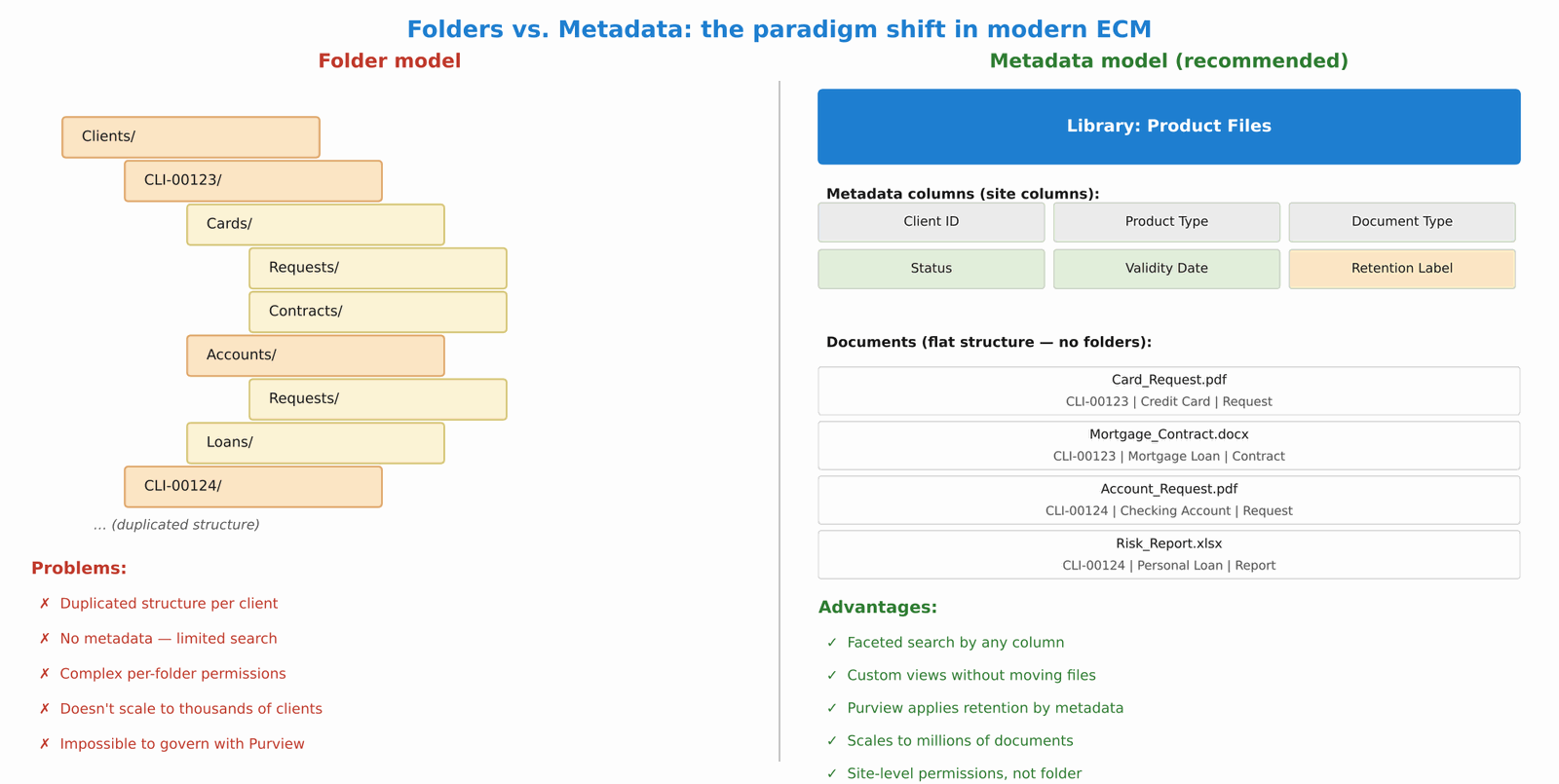
In SharePoint Online, the equivalent of «organizing in folders» is assigning metadata. A document doesn’t need to be in the folder «Clients / CLI-00123 / Cards / Applications / 2025» for that to be true; it needs to have the metadata Client_ID = CLI-00123, Product_Type = Card, Document_Type = Application, Year = 2025. With that metadata I can create as many «views» as I want over the same library, without moving a single file. The cards manager sees their view, the branch operator sees theirs, the auditor sees theirs. The physical document is just one.
The operational advantages are immediate: faceted search lets you filter by any combination of metadata; Purview retention policies are applied by metadata, not by folder location; and if the business organization changes tomorrow, there’s no need to move or rename any file, just adjust the views. Image 2 compares the two models directly.
A practical clarification: I’m not saying folders don’t exist in SharePoint Online; they still exist and sometimes make specific sense (for example, to group a set of files from a batch process generated together). What doesn’t make sense is using folders as the main mechanism for document organization, because as soon as the structure grows, it turns into a maintenance problem.
Summary: design decisions for the document architecture
Before wrapping up, here are the key decisions we made for the ECM manager in this series:
| Decision | Chosen option | Why |
|---|---|---|
| Root site type | Communication Site as hub | Broad audience, simple permissions, no automatic M365 group |
| Client sites | Team Sites associated with the hub | Active collaboration, M365 group included, granular permissions |
| Hub sites | Root → Client type → Sites | Unified search without mixing permissions |
| Unit of isolation | One site collection per entity | Independent permissions, quota and lifecycle |
| Internal organization | One library per process type | Process-specific retention, views and content types |
| Content types | Published from the Content Type Hub | Consistency and automatic propagation across the tenant |
| Document organization | Metadata, not folders | Faceted search, retention by metadata, no friction when reorganizing |
Conclusion
In this article I presented the foundations of the document architecture: how to choose the site type, how to use hub sites to connect without merging, why each entity needs its own site collection, how to organize the libraries and why metadata replaces folders in any modern ECM platform. These decisions seem abstract at first, but they’re the ones that determine whether the document manager will be able to grow, be governed and be maintained five years from now. In the next article we go down to the next level: metadata in detail—Term Store, site columns, term sets and how the metadata architecture directly impacts the quality of Copilot’s answers.
Fabián Imaz
Office Apps and Services MVP
CEO Siderys | CTO qualitaslearning.com
fabiani@siderys.com.uy | @fabianimaz
Appendix — Full series: ECM with Microsoft 365
A 17-article series. The links are updated as the articles are published.
- Enterprise Document Management with Microsoft 365: a use case that applies to any sector, with a focus on finance — Reference architecture: files per client, content types, document lifecycle and two-tier archiving with SharePoint Embedded and M365 Archive.
- ECM Licensing in Microsoft 365: how to choose without overspending — Enterprise, Business and Frontline plans; SharePoint Embedded, M365 Archive, Purview and Copilot. Mixed licensing by user profile.
- Document Structure (this article) — Communication Sites vs. Team Sites, hub sites as concentrators, site collections per entity, libraries per process, Document Sets, document links and metadata instead of folders.
- Metadata — Term Store, site columns, term sets, inheritance from the content type and its impact on Copilot’s answers.
- Governance and Security — Permission models, Microsoft 365 groups, SharePoint Advanced Management, Data Access Governance and conditional access.
- Processes and workflows — Power Automate, approvals, document lifecycle and Copilot Actions for automation.
- Compliance and retention with Microsoft Purview — Retention labels, Records Management and DLP. Replacing the information management policies deprecated in April 2026.
- Cataloging and classification — SharePoint Premium / Syntex: automatic classification, entity extraction and sensitivity labels.
- Migration to modern ECM — Content audit, migration strategy, tools (SPMT, Sharegate) and change management.
- Storage — SharePoint Online Sites — Site collections, quotas, lifecycle policies and site archiving.
- Storage — SharePoint Embedded — Containers, API via Microsoft Graph, PAYG cost model and archiving use cases.
- Search — Microsoft Search, KQL, Graph connectors and the SharePoint Knowledge Agent.
- Integration with APIs and Graph — Microsoft Graph API, SPFx, REST API and webhooks for integration with external systems.
- Azure AI and document intelligence — Azure Document Intelligence, OCR, field extraction and multimodal processing integrated with ECM.
- Copilot and ECM — How the metadata and structure architecture impacts the quality of Copilot’s answers.
- Copilot Studio Agents over document content — Autonomous agents over SharePoint repositories and their integration with the Power Platform.
- Forms and intelligent document capture — Custom upload forms, structured capture at ingestion and metadata validation at the source.