Over the last few years at Siderys we have built many Enterprise Content Management (ECM) solutions in SharePoint and Office 365, where document management and digital content have been designed and implemented for our customers. SharePoint is a well-prepared platform with many features to handle ECM documents and solutions, ranging from a powerful search engine to specialized metadata management services that allow you to catalog documents, manage their metadata and even store documents automatically in different locations based In the cataloging made by the user.
A feature that gives a lot of versatility to end users is when using Microsoft Office, connected to SharePoint, as it allows you to use templates or documents linked to the cataloging (Content Type) made and their metadata. The document being linked to SharePoint provides the possibility of adding the metadata as elements of the content of the document.
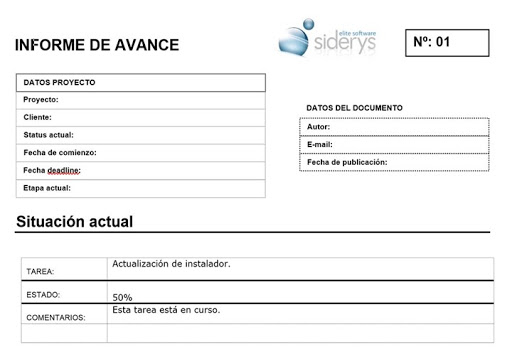
In order to test this feature we will use a document called «Progress Report» which will be linked to a content type that will bear the same name and will contain a series of metadata that can be embedded as part of the content of the report. In the following image you can see part of the document to be used linked to the SharePoint content type.
Screenshot 1 – Document associated to the type of content
The next step is to create a content type on a SharePoint site, it should be called the «Progress Report» and it will have 4 metadata:
1) Title -> Default SharePoint column of the type text and mandatory. In the same we will handle the name of the project
2) Client -> Column type text and mandatory.
3) Project Status -> Column of the election type and mandatory. In the same one must load the options that are wanted to handle.
4) Current Stage -> Column of the election type and mandatory. In the same one must load the options that are wanted to handle.
Finally, in the advanced section of the type of content you are creating, you must associate the corresponding document so that it is linked in SharePoint and configured to be able to be used in a document library. It is at this moment, when we associate it with a library, that we will edit the same and perform the linking of the metadata with the content of Word. In the following image you can see how the type of content was built and configured for use in any library.
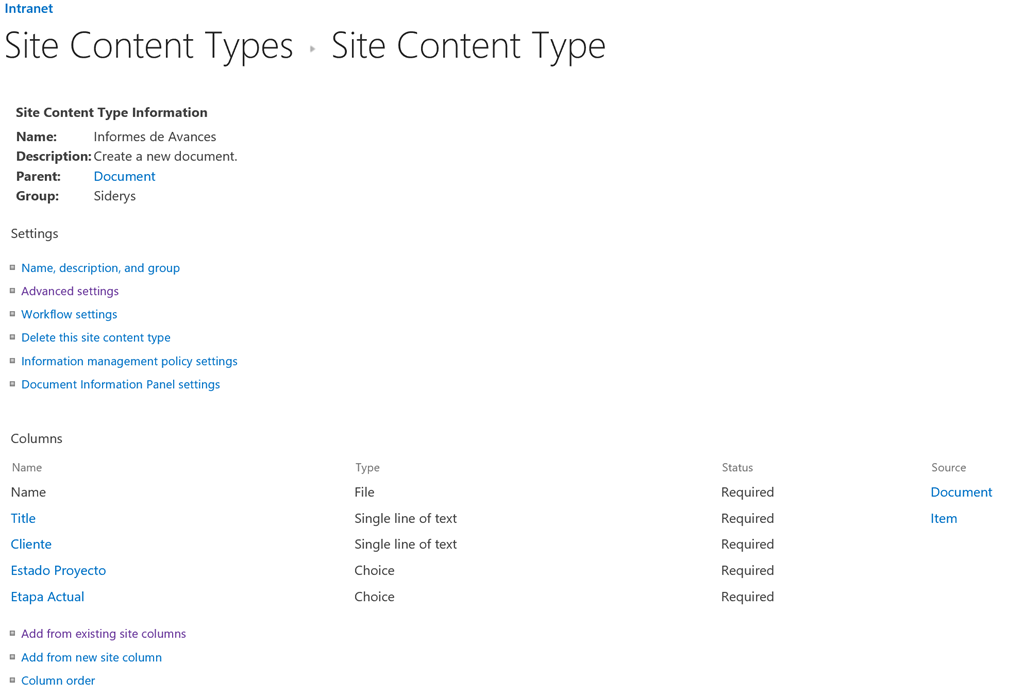
Screenshot 2 – Content type «Progress Report» created in SharePoint.
You now need to set the content type in a document library so that you can use the metadata within the associated template. This is only possible when the type of content is being used inside the library, not when we are configuring it in the site. This is because SharePoint is just now creating the instance of the same and providing a storage space within a library to be able to use the same. The following link shows how to associate content types with a library, Office.
Now that the content type has been configured, it must proceed to configure the metadata of the content as part of the document content. Access the library settings, in the «Content Types» section select the type of content previously associated, select the «advanced settings» section and finally select the «Edit Template» link that appears under the name of the document that previously Associate This will open the Word document so that you can modify the corresponding template. The next step is to insert the metadata as part of the content, position the cursor in the section of the document, in our example we will enter the metadata title in the top table associated with the name of the project. In the Ribbon select the «Insert» option, then select the «Quick Parts» command in the «Text» section and finally position the mouse pointer over the «Document Properties» option to list all properties linked to the Same, as you can see in the following image the four metadata created in the content type are listed.

Screenshot 3 – Linking SharePoint metadata as part of a Word content
As a final part of the example, the four metadata created in the content type were linked and some properties, such as the author, electronic mail and publication date of the report, were also linked as part of the content of the document. Save the changes made to the template and finally close the template so that we can use it in the document library.
To test it, access the library, in the Ribbon select the «Files» tab, then display the «New Document» command options and finally select the «Progress Report» option to generate a document based on the type of Content that is set up. If you change the content type metadata values in the server properties panel as you can see in image 4, the values associated with the body of the Word will be modified.
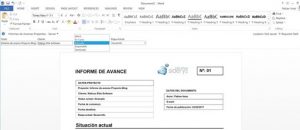
Screenshot 4 – Creating a document based on the type of content created.
This kind of feature that SharePoint and Microsoft Word provides allows you to create documents automatically through a routine or a flow, allowing content to be loaded automatically. Load a document or create a new item in the list by loading the field values so that the document covers life