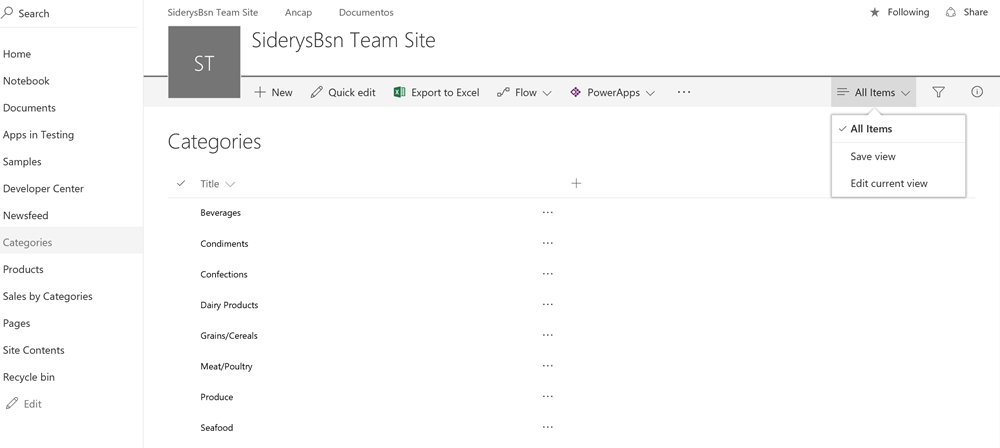
The use of Office 365 became a standard within organizations that want to have a collaborative, management and communication environment. Among the features we have, is SharePoint, which allows you to build workspace to store records or documents. The storage structures, Lists and Libraries, have the ability to have specialized views that allow users to access data or documents under certain criteria of filter, order and even metadata (Columns) that we want to be displayed.
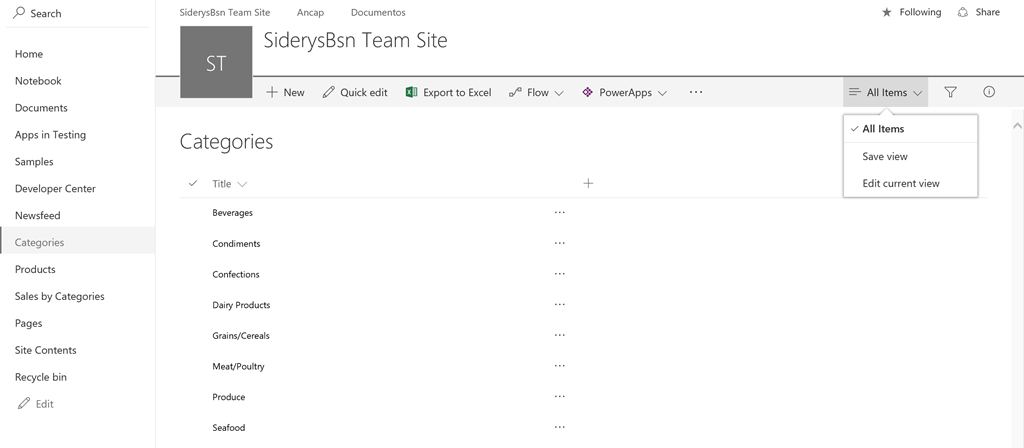
Screenshot 1 – Configuring a view in SharePoint Online
When we have to develop a component or access a set of records or documents that are in SharePoint Online, views can be a good mechanism for accessing data in an efficient and orderly manner. Recall that when using Office 365, we are using the On-Line version, which means that the data we query must be transported from the Microsoft Cloud to the client where the query is running. To test the use of views to access data, create a console application by using Visual Studio 2015, add the references to the following assemblies «Microsoft.sharepoint.client.dll» and «Microsoft.sharepoint.client.Runtime.dll «, Finally replace the code of the» Program «class with the one below.
using Microsoft.SharePoint.Client;
namespace ConsoleApplication
{
class Program
{
static void main(string[] args)
{
using (ClientContext ctx=new ClientContext(“http://sitio”))
{
//Credenciales
ctx.Credentials = new System.Net.NetworkCredential(“Usuario”, “Clave”);
Web web = ctx.Web;
ctx.Load(web,w=>w.Lists);
List list = web.Lists.GetByTitle(“Lista”);//Cargar Lista
ctx.Load(list, l => l.Views);
ctx.ExecuteQuery();
CamlQuery query = new CamlQuery();
ListItemCollection itemColl = null;
View view = list.Views.GetByTitle(“Vista”);//vista
ctx.Load(view, vw => vw.ViewQuery);
ctx.ExecuteQuery();
query.ViewXml = string.Format(“<View><Query>{0}</Query></View>”, view.ViewQuery);
itemColl = list.GetItems(query);
ctx.Load(itemColl);
ctx.ExecuteQuery();
}
}
}
}
Before running the console you must change the following values to work correctly:
Http://site = URL of the SharePoint Online site to which you want to connect.
User = Email of the user that will be used to connect to the site.
Password = Password of the user to connect to the site.
List = Name of the list or library to which you want to connect.
View = Name of the view you want to use to access the records or documents. Remember that the view must be created.