The Project Server tool, both its Online version and its version On Premise that runs on the SharePoint platform allows to create types of enterprise projects. Not all organizations have to perform this configuration to use the tool, in fact, if the only thing that is wanted is to control the work, allocations, resources, times, costs and other variables that a project handles, then it can be used The type of enterprise project (ETP) that comes by default with Project Server.
Now, if an organization seeks to incorporate a methodology, for example it would like all its projects to be executed following PMI, then the recommendation is to create a type of new business project in the tool. The definition of a personalized ETP allows the following advantages:
1) All projects that are created using this type of project will be identified within the project portfolio under this type.
2) You can associate a flow (WorkFlow) to control the project life cycle. That is, any step that the methodology requires to be carried out will be controlled by this flow.
3) Customize the detail pages of Project, allowing each Phase and Stage of the project to display a specific screen to capture data.
4) You can configure ETP only so that it can be used by one or more departments of your organization, this means that you can configure the tool so that only members of the Engineering area use this type of business project.
5) A Gantt project template specifies the type of business project you are creating
6) You can configure a particular SharePoint site to handle the entire project documentation, which means that when you create a project in the tool using your template, a SharePoint site will be created as defined.
In the next post will see how all these configurations that will be made individually are going to go mating with each other so that everything is taking shape.
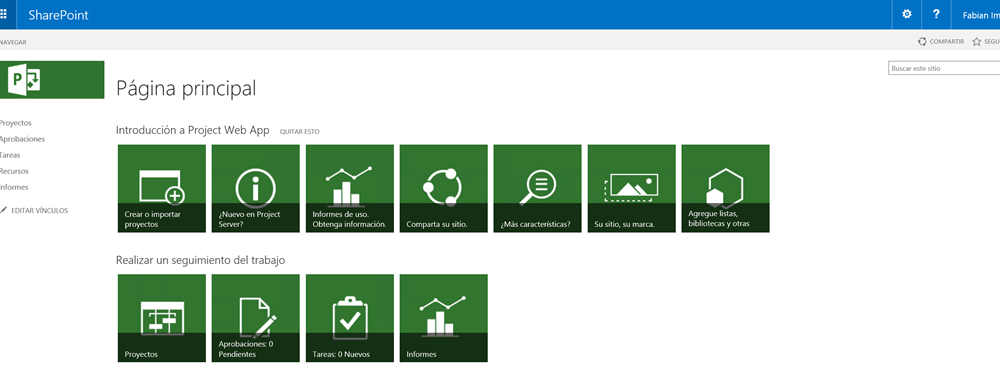
In order to create an Enterprise Project, ETP, in Project Server, we must access an instance of our PWA (Project Web Access), as you can see in the following image:
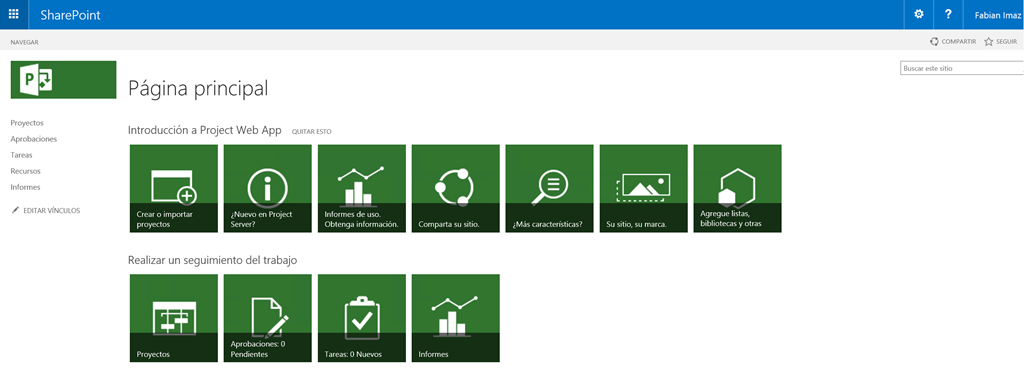
Screenshot 1 – Project Server PWA Home
Follow the steps below to configure an ETP within Project Server:
1) Select the gear in the upper right, then select «PWA Configuration.
2) The configuration screen contains several sections, in the section «Workflow and project detail pages» select the «Business Project Type»
3) In the new window, in the toolbar select the option «New Type of Business Project»
4) Enter the following values for the new ETP being created.
- In the field Name: PMI
- In the «New project page or project detail pages» section, select «Project Details», «Project Information» and «Schedule», then select the «>» button to load them and make them available.
5) Leave the other options by default, which in the next post will be configured as you create and configure the other options. Select the «Save» button at the bottom of the page.
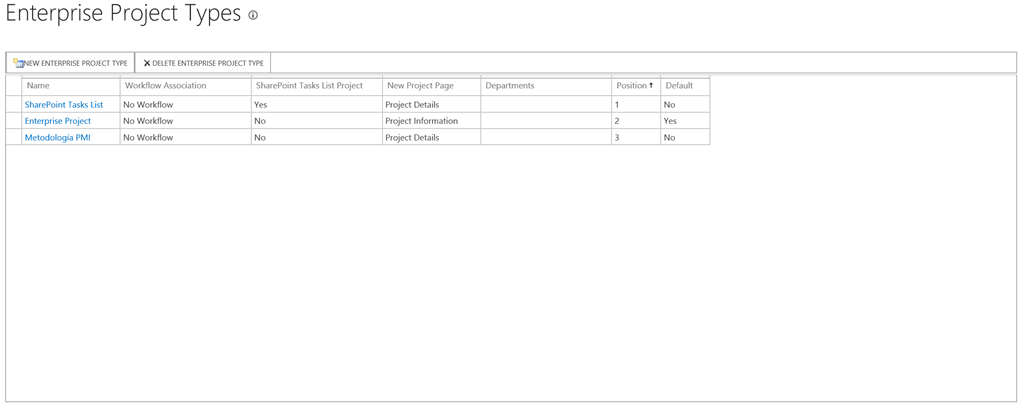
Screenshot 2 – List of Business Projects.
The ETP is available for use within the PWA to create a project using this type of project, access the PWA home and select the «Create or Import Projects» tab.
As you can see in the following image, the business project type (ETP) is already available to be used within Project Server.
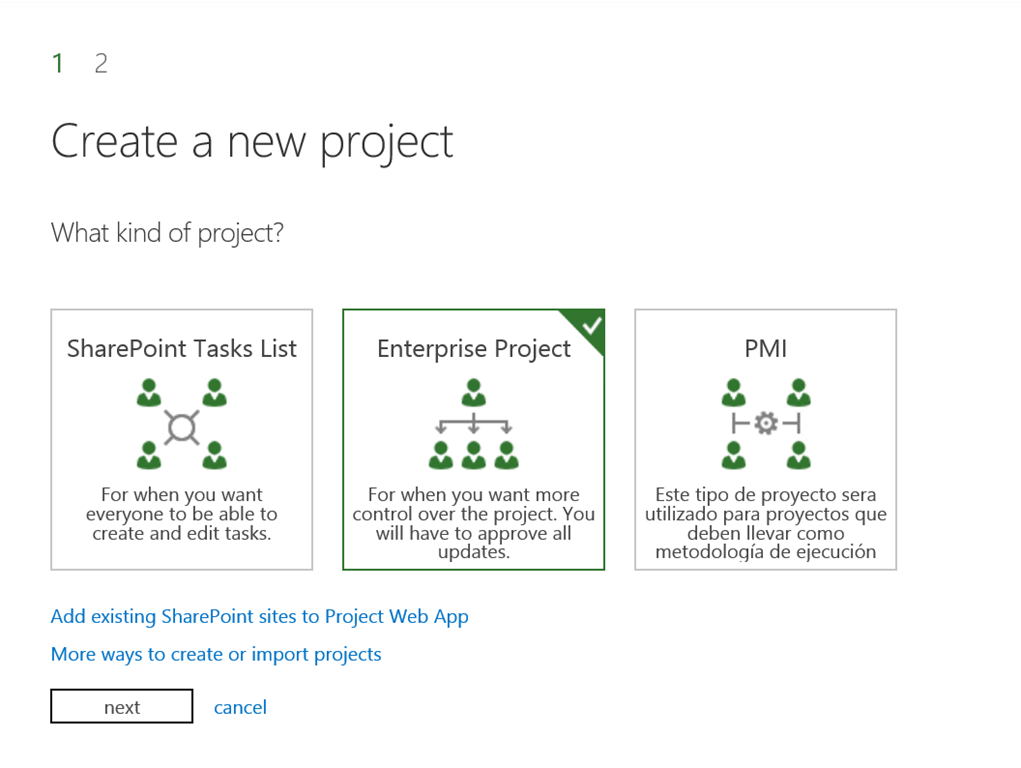
Screenshot 3 – ETP available to use.
Now you can create your first project in the tool based on your own type of business project that will allow you to control the projects that have to be carried out in a certain methodology. In the next post you will see how you can add other configurations, custom data and configure the flow (WorkFlow) to follow.