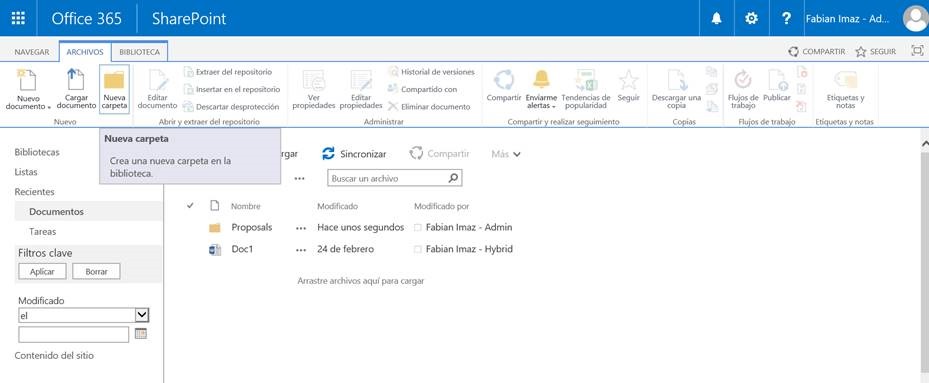
When working with SharePoint, we commonly handle electronic documents generated directly on the platform or loaded into a document library. While the maximum number supported by a library is very large, there are some restrictions regarding the number of documents per view supported by libraries, that’s where we must start to handle carefully as we upload documents. Even in these times, many users who use SharePoint do so through developed applications that connect directly through different services and provide a richer user experience than the platform itself and even from mobile devices. The use of folders allows us to quickly sort the documents we want to store, establishing an order and a quick categorization to save documents. This way users can not only store all the millions of documents that are supported, but also can access them in a simple way. The following image shows a document library with a folder created using the SharePoint interface.
![clip_image002[4]](http://siderysc-cp70.wordpresstemporal.com/blogen/wp-content/uploads/2017/04/clip_image002-25255B4-25255D_thumb-25255B1-25255D.jpg "clip_image002[4]")
Screenshot 1 – Document Library in SharePoint
But as we can do to create a folder in a library from a mobile application or an external system to SharePoint, the solution is in the Client Side Object Model (CSOM) API. This API allows you to connect from any .Net application to SharePoint and manipulate the elements of a library, list or a website properly. In the following example, you will create two folders through CSOM and a .Net console application. Once the project is created in Visual Studio, the next step is to add the references to the API as you can see in the following image.
![clip_image004[4]](http://siderysc-cp70.wordpresstemporal.com/blogen/wp-content/uploads/2017/04/clip_image004-25255B4-25255D_thumb-25255B1-25255D.jpg "clip_image004[4]")
Screenshot 2 – Adding CSOM API references to Vs.Net
Finally, replace the entire application code with the code shown below and run the application, enter the password of the user you are using to connect and press «Enter». When you finish running the console application, access the library in question and you will find two newly created folders.
To execute the code correctly you must load the following variables into the code itself before executing it
- SiteUrl = Enter the URL of the SharePoint site where your document library is located.
- Query = Enter the name of the document library.
- NamesArray = Enter the names of the folders you want to create, it’s a list, socorrectly you must load the following variables into the code itself before you run it.
using Microsoft.SharePoint.Client;
using System;
using System.Collections.Generic;
using System.Linq;
using System.Security;
using System.Text;
using System.Threading.Tasks;
namespace ConsoleApp2
{
class Program
{
static void Main(string[] args)
{
string siteUrl = «URL DEL SITIO»;
ClientContext clientContext = new ClientContext(siteUrl);
SecureString securePassword = GetPassWordFromConsole();
clientContext.Credentials = new SharePointOnlineCredentials(«usuario@domino.onmicrosoft.com», securePassword);
Web rootWeb = clientContext.Web;
//Obtener la lista
var query = clientContext.LoadQuery(rootWeb.Lists.Where(p => p.Title == «Documentos»));
clientContext.ExecuteQuery();
List list = query.FirstOrDefault();
string[] namesArray = new string[] { «Invoices», «Orders» };
foreach (string name in namesArray)
{
//Agregar Carpetas
var folders = list.RootFolder.Folders;
clientContext.Load(folders);
clientContext.ExecuteQuery();
var newFolder = folders.Add(name);
Console.WriteLine(name);
}
//Ejecucion de request
clientContext.ExecuteQuery();
}
private static SecureString GetPassWordFromConsole()
{
SecureString securePassword = new SecureString();
string password = «»;
ConsoleKeyInfo info = Console.ReadKey(true);
while (info.Key != ConsoleKey.Enter)
{
if (info.Key != ConsoleKey.Backspace)
{
Console.Write(«*»);
password += info.KeyChar;
}
else if (info.Key == ConsoleKey.Backspace)
{
if (!string.IsNullOrEmpty(password))
{
password = password.Substring(0, password.Length – 1);
int pos = Console.CursorLeft;
Console.SetCursorPosition(pos – 1, Console.CursorTop);
Console.Write(» «);
Console.SetCursorPosition(pos – 1, Console.CursorTop);
}
}
info = Console.ReadKey(true);
}
Console.WriteLine();
securePassword = new SecureString();
//Convert string to secure string
foreach (char c in password)
securePassword.AppendChar(c);
securePassword.MakeReadOnly();
return securePassword;
}
}
}