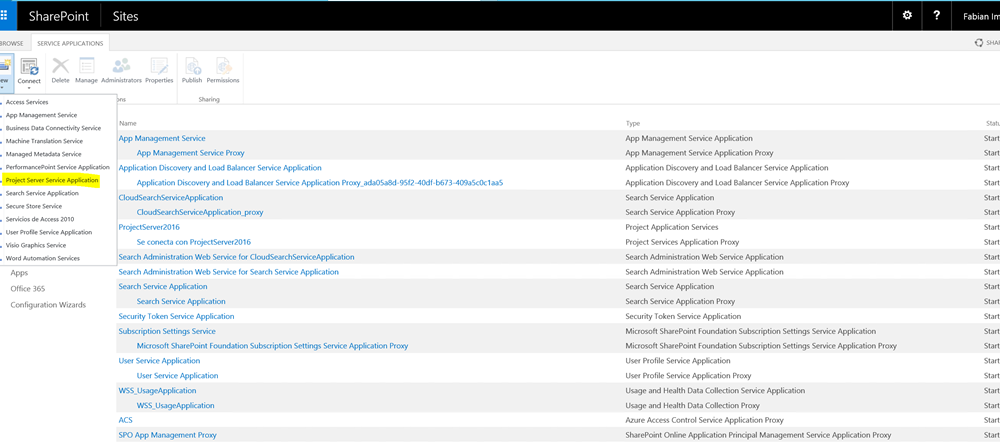
In the new version of the SharePoint Server 2016 platform, Project Server is included in the product and no additional components are required to be installed on the farm. If we want to enable Project Server in a SharePoint Server farm, the first thing to do is to enter the license of the product by running the following command in PowerShell:
Enable-ProjectServerLicense -Key <LicenseKey>
Once Project Server is enabled, the configuration process is the same as in previous versions, we must create the service application within the farm to be provisioned.
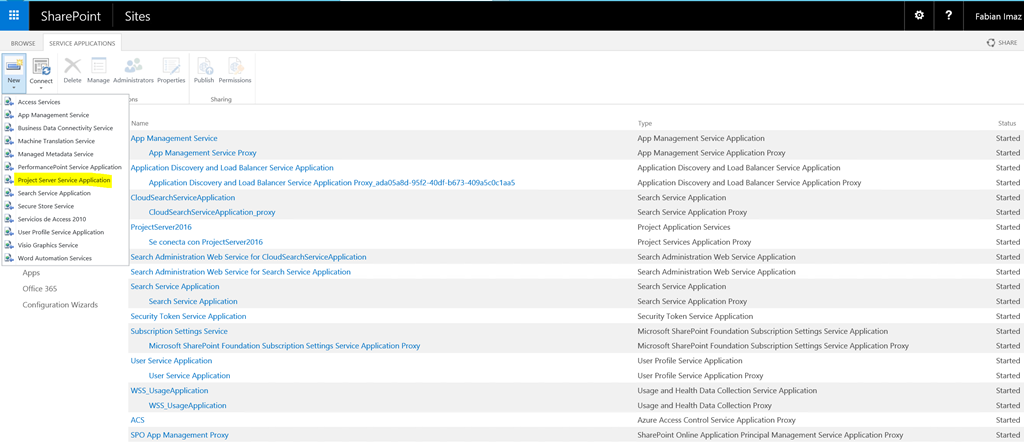
Once the service is provisioned, we can configure our Project Center within the farm, unlike previous versions we had to create a site based on a given template, now the product is embedded within any existing site collection, since the Enabling the PWA is now achieved through a feature of the site collection and which we can enable in any existing collection within the farm running the following command:
Enable-SPFeature pwasite -URL <http: // server> / <site collection>
At the end of the command the collection of sites will be configured as PWA within our farm, for which we can use it to manage projects and our organization.
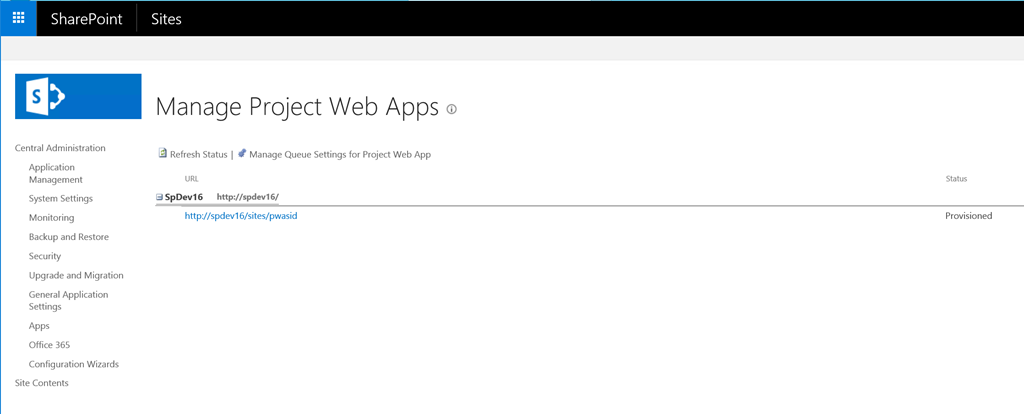
As you can see the new model about Project Server in the SharePoint collaboration area since it can be embedded within any structure already created within the organization, ie if you migrate your farm to SharePoint Server 2016 and now want to enter the Managing projects to your organization using Project, in an existing area can do it without problems. If you want to start from scratch or try Project Server, I recommend that you create a new site collection by using the following PowerShell command that uses a site template named PWA # 0 that is not available through the UI SharePoint Server.
New-SPSite -ContentDatabase ContentDBName -URL SiteCollectionURL / PWASiteName -Template pwa # 0